Operations dashboard walkthrough
The first screen your team opens every morning
Real Getz CPMS screens, captured with a fictional demo operator. Start with the Command Centre, then follow the tabs below through sites, chargers, energy, tariffs, records and the owner portal. No form, no call.
Real screen, fictional demo operator. Numbers mark what your team acts on.
- Open faults, as chargers report themA ground fault or a charger gone quiet lands here, unacknowledged until someone owns it.
- Dispatch a technicianAlerts can open work orders, so the visit starts with the charger, the fault and its history attached.
- Publish a planned outagePut an outage on record and the site’s EV charging drops to the backup-power limit you set for that window.
- Estate positionChargers online, faulted and offline, and EVSE availability, across every site you run.
The Command Centre: a week of charging, live sessions and what needs a person, on one screen.
From estate to session record
Seven screens, in the order an operations lead uses them.
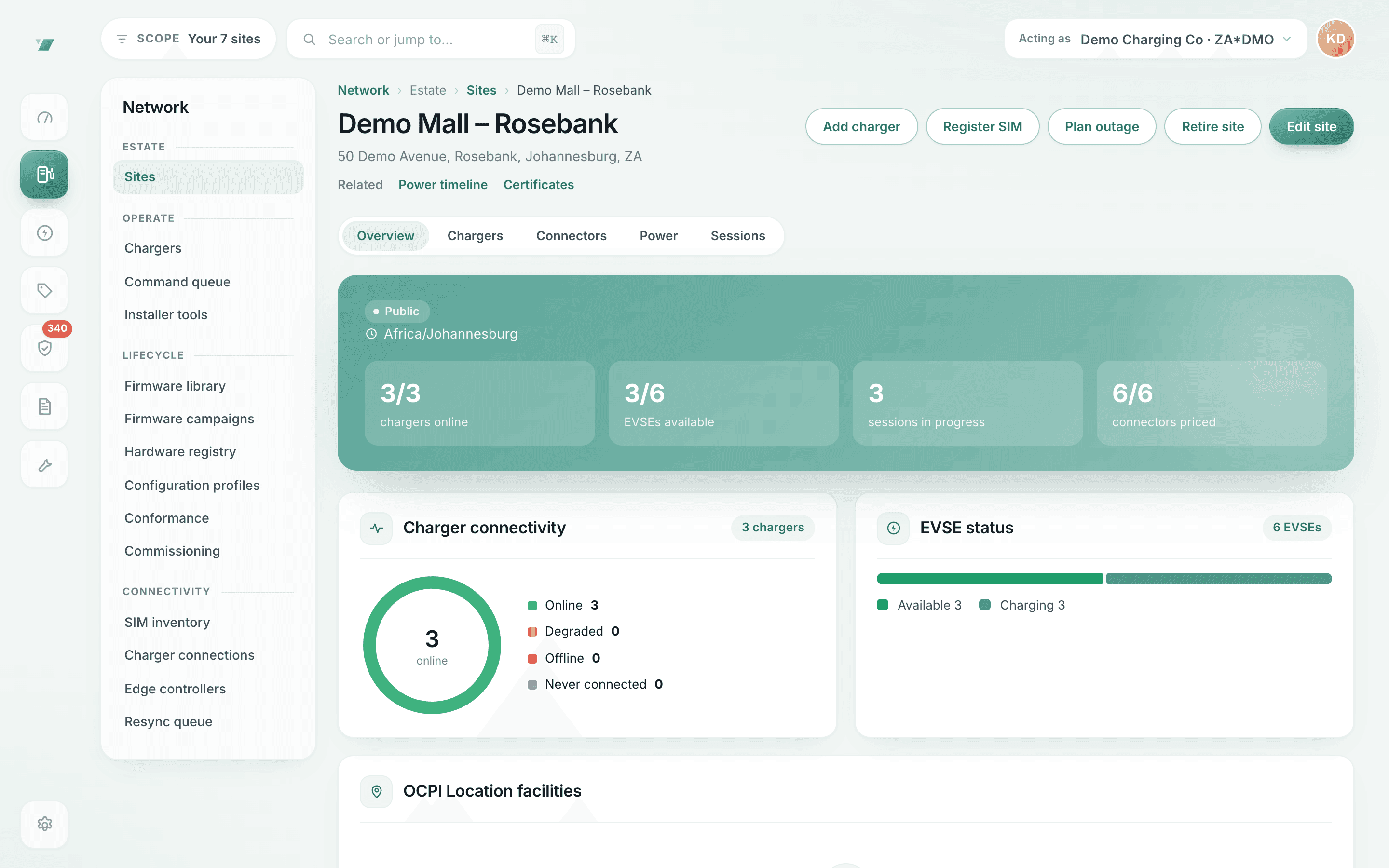
Every site on one screen
You control what a site publishes and whether every connector has a price before it goes live, so a half-ready site never reaches drivers.
- What you see: chargers online, EVSEs charging, connectors priced
- Why it matters: a site is ready to publish only when every connector has a price
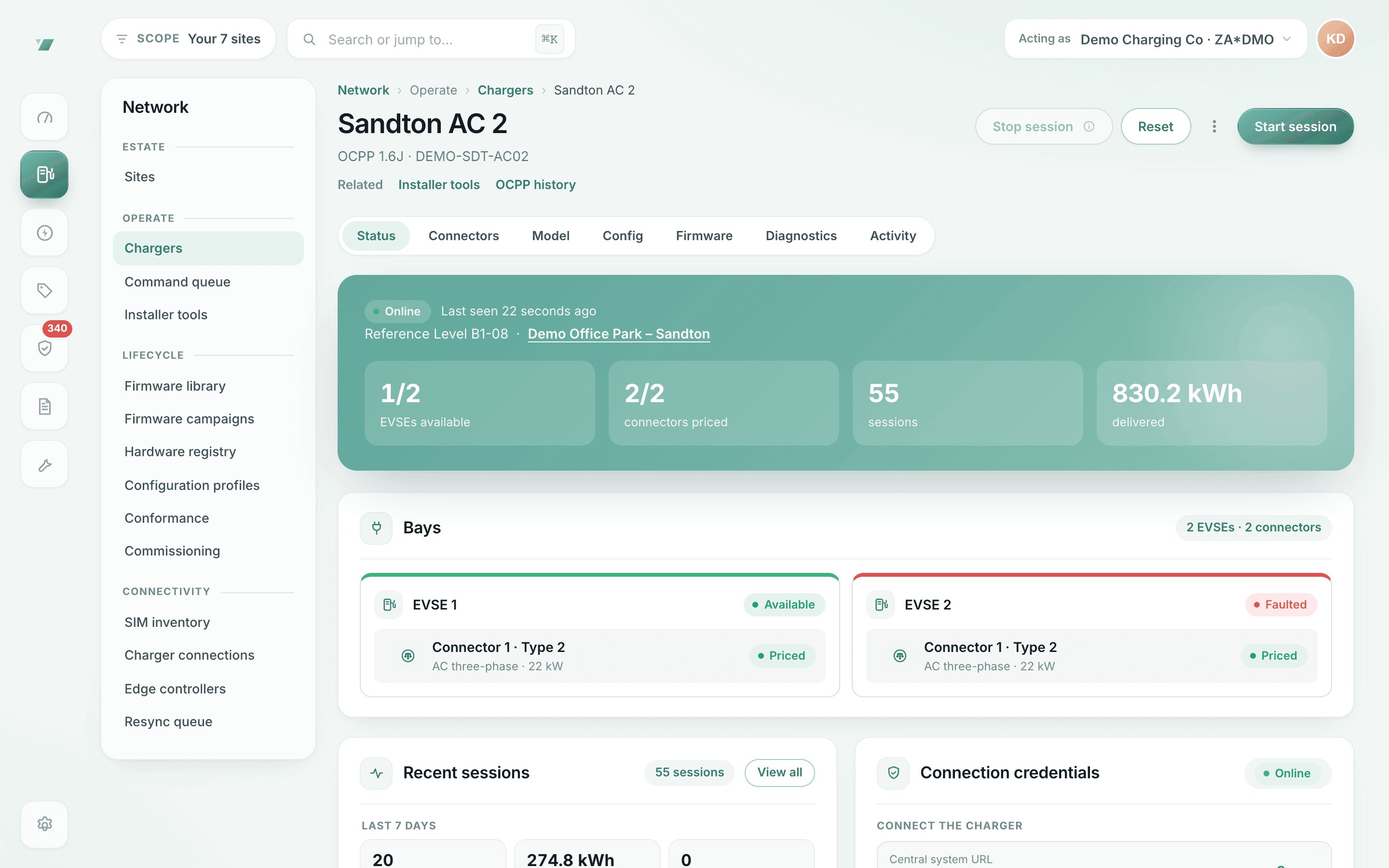
A fault the moment the charger reports it
Reset, unlock or change availability remotely and turn the alert into a work order, instead of driving out to find out what is wrong.
- What you see: a ground fault on one connector, the other still in service
- Why it matters: one fault does not take the whole charger out
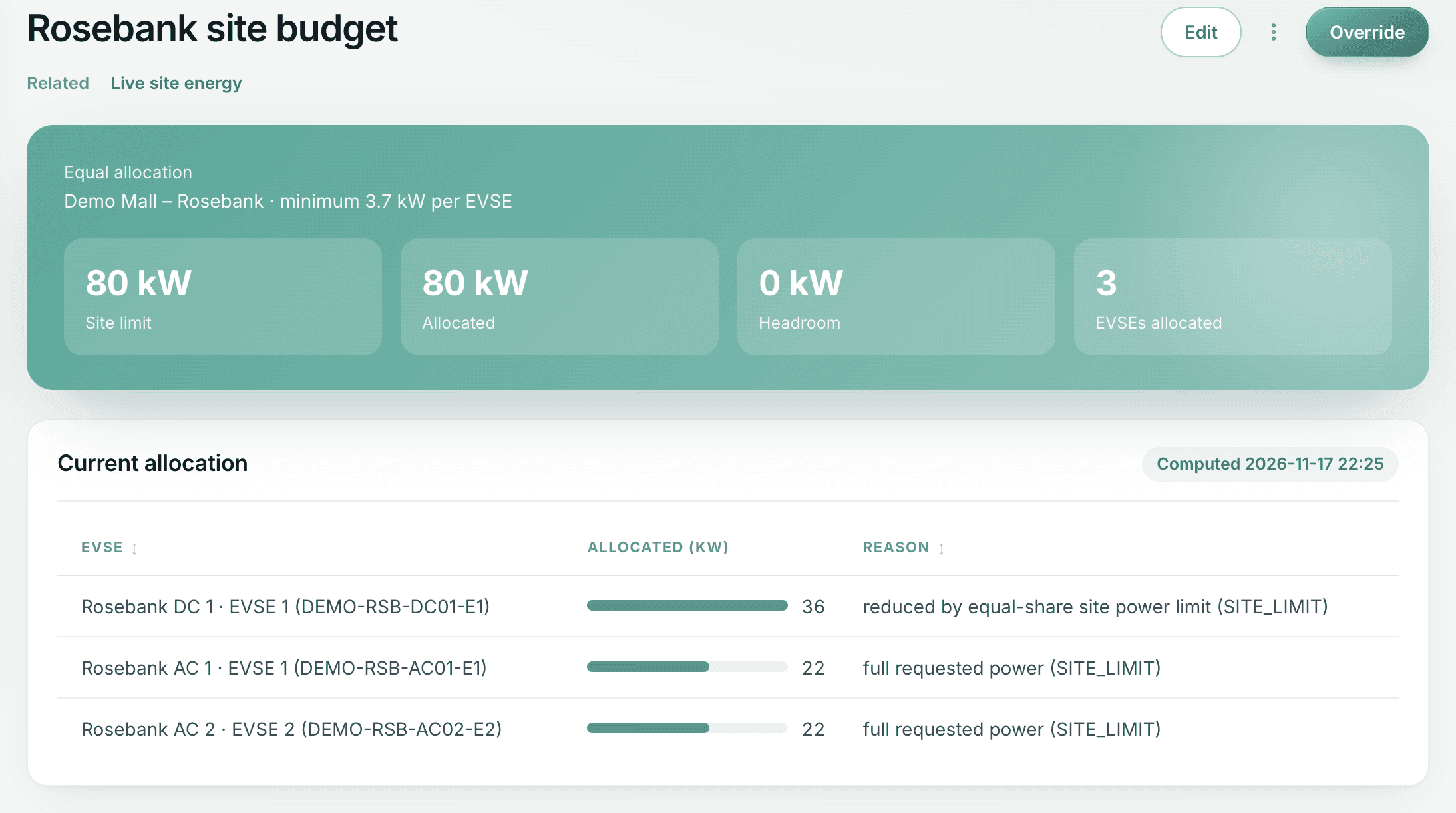
Charging inside the site’s limits
Set the site limit, grid limit and site meter. Charging profiles keep EV load inside the budget, so it does not compete with the building for supply.
- What you see: the site limit, what is allocated and why each EVSE gets its share
- Why it matters: EV charging stays inside the site limit you set
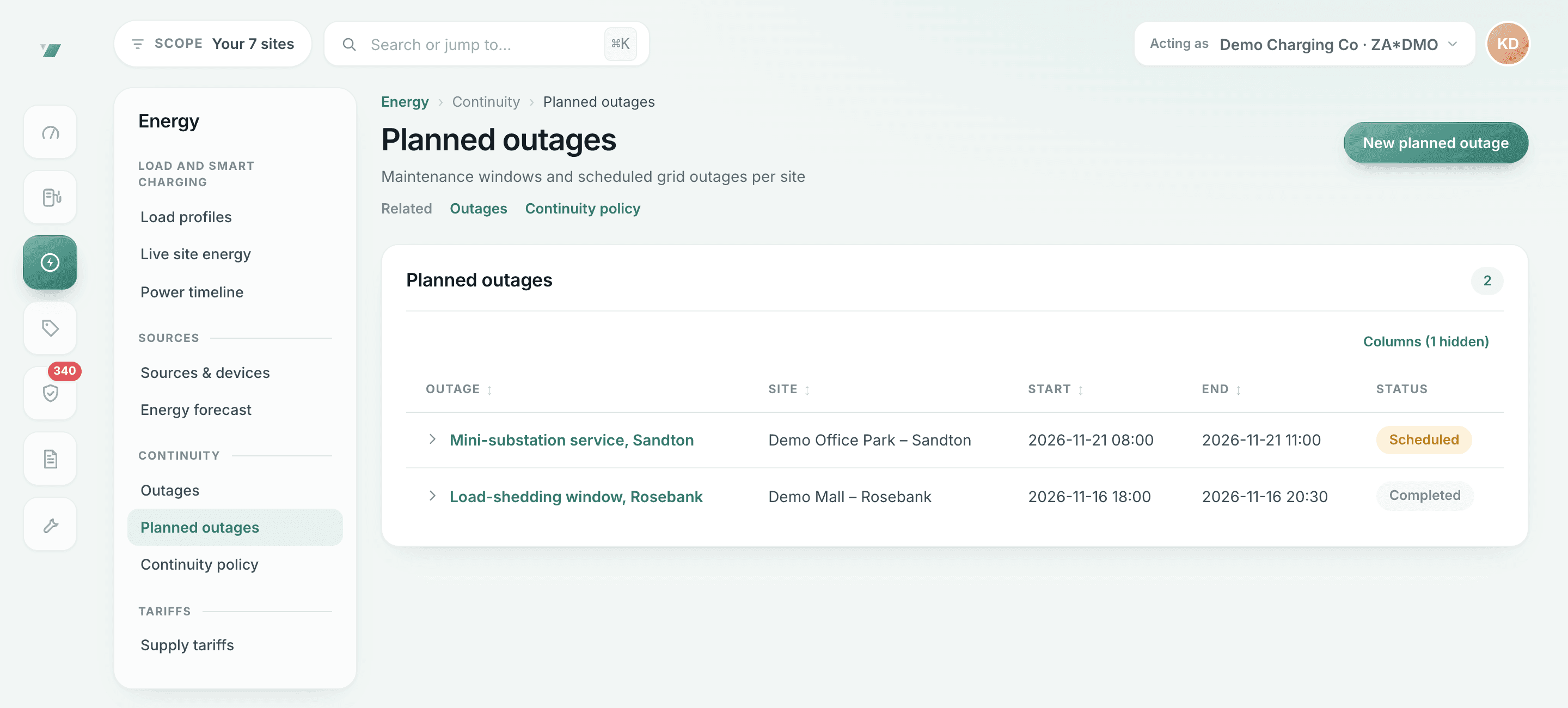
Planned outages on record
Outage windows sit next to the continuity policy, so charging drops to the backup-power limit for exactly that window.
- What you see: upcoming windows per site
- Why it matters: drivers’ apps show the outage before they drive there
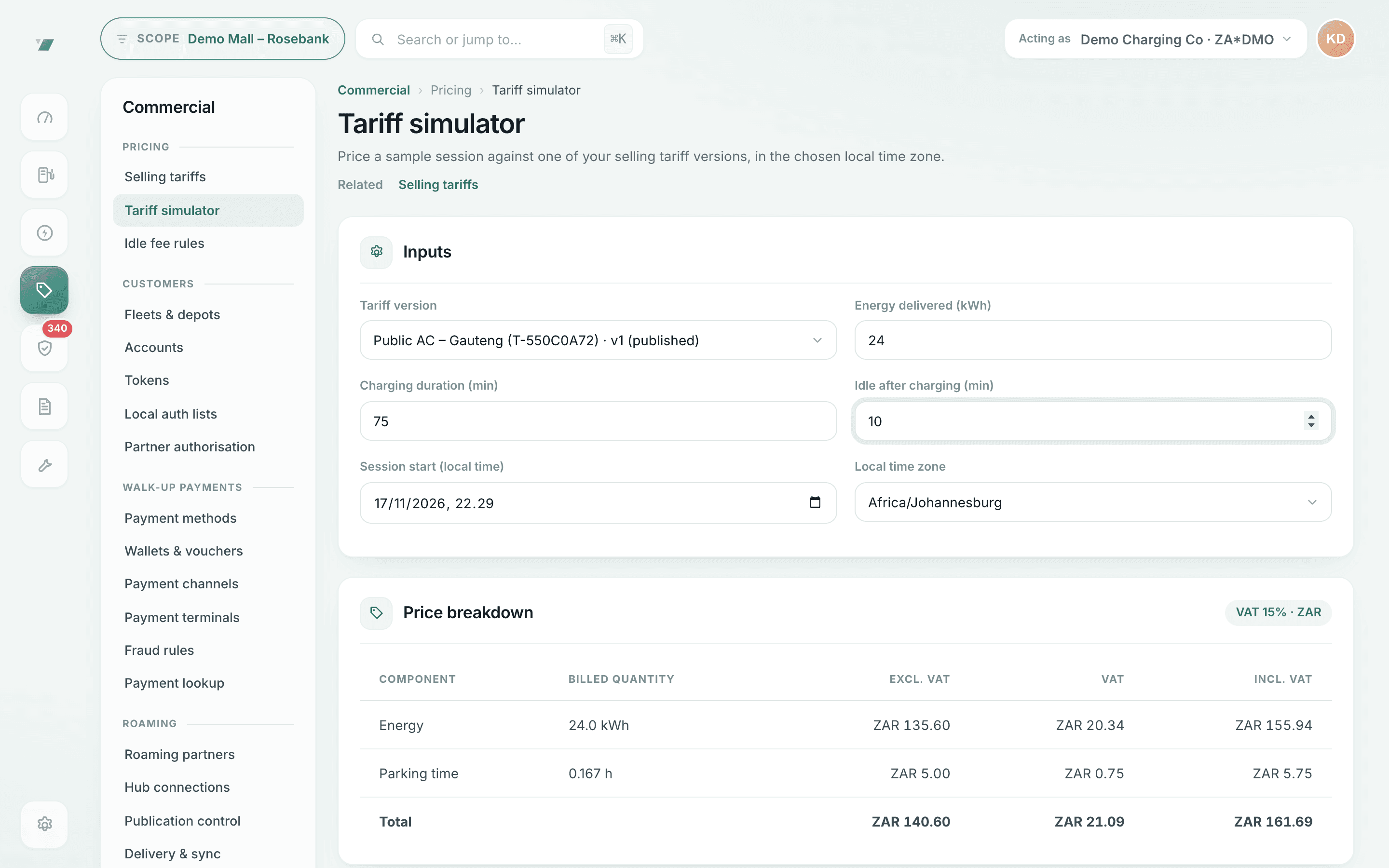
Price a session before a driver does
Energy, time, idle and flat fees by time of day, with VAT for the site and date. The simulator shows each component before a tariff is published.
- What you see: price per component, VAT and total
- Why it matters: no surprises for drivers or roaming partners
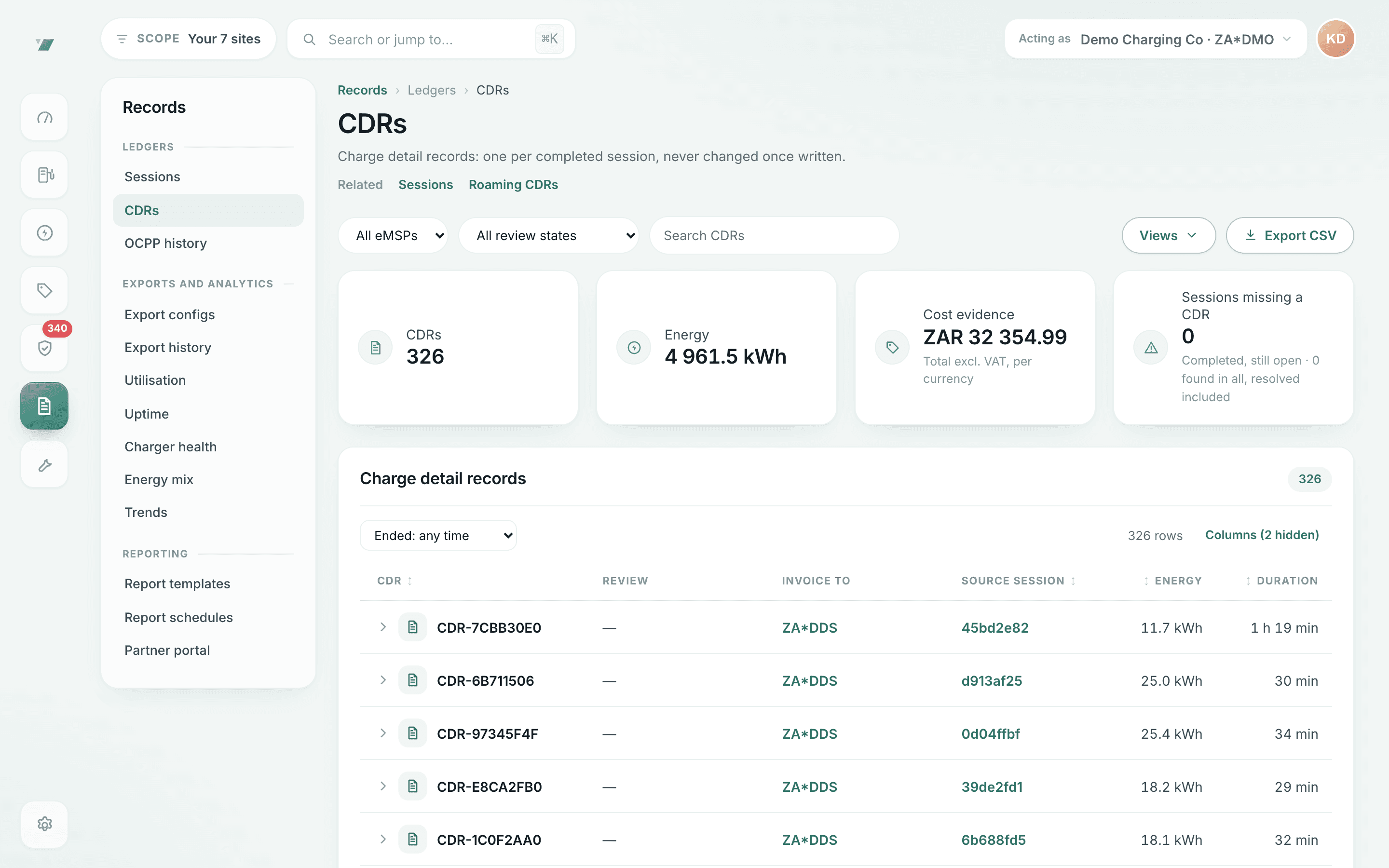
One record per session, never changed
Export CSV, Xero, QuickBooks or Sage files on demand or on a schedule, so month-end is a download rather than a reconciliation project.
- What you see: every CDR with energy, tariff and amount
- Why it matters: immutable once issued; export to Xero, QuickBooks or Sage files
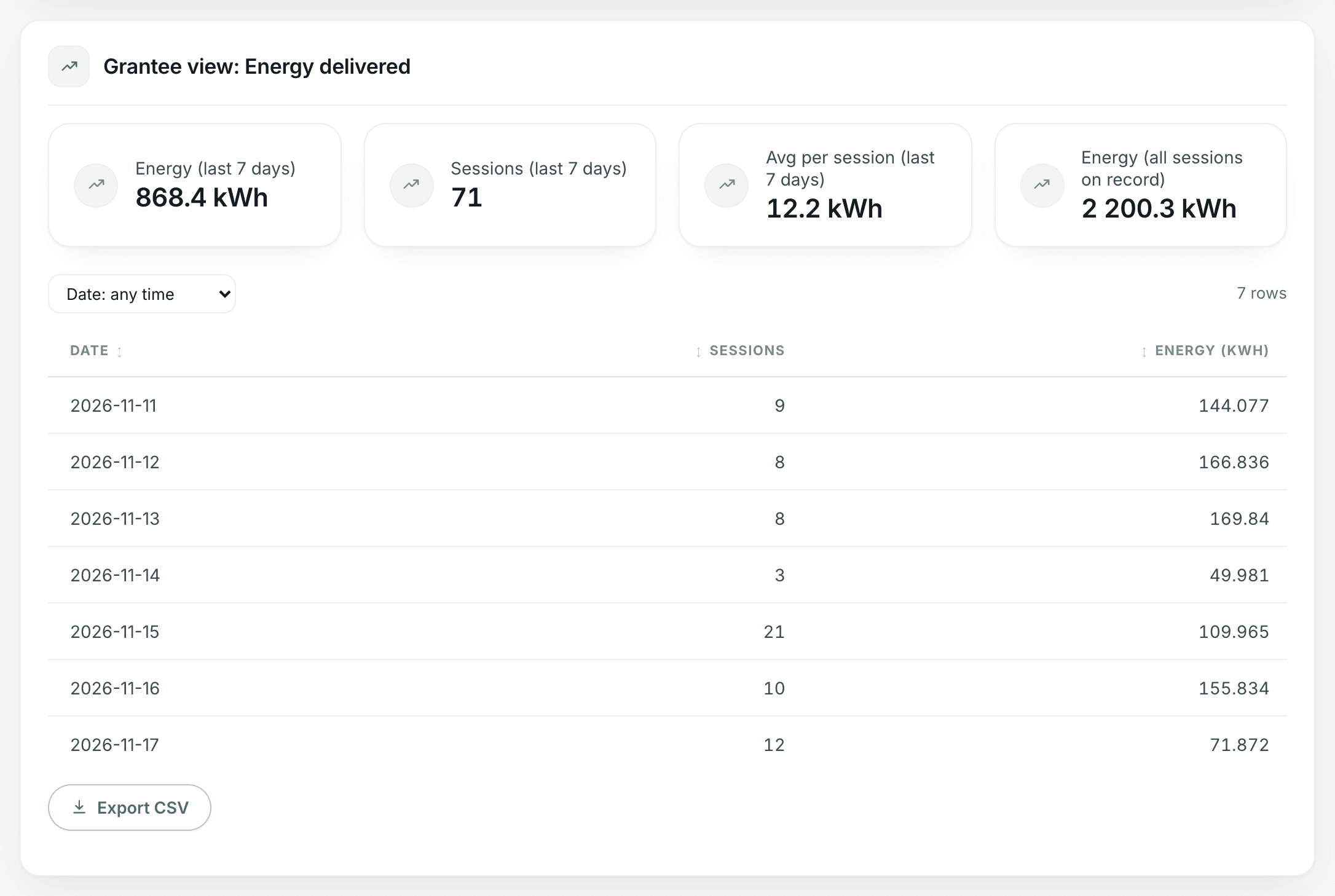
A view for owners, not the keys
Hosts and investors see availability, energy and sessions for their own sites, with no prices or token ids. Grants expire and can be revoked at once.
- What you see: kWh and sessions per day at one site
- Why it matters: hosts and investors follow utilisation without asking
What a CPMS demo adds
The screens above show the product. A demo shows it working on your questions.
Your focus, live
A person drives the real back office with a fictional operator: energy, operations, records or the portal, whichever you ask for.
Your chargers and sites
Bring your charger models, site count and current back office; we show what changes and what is checked at commissioning.
What a quote needs
Sites, chargers, energy-control needs and who commissions. Ask us for pricing in the same conversation.
Seen enough to ask better questions?
Request a CPMS demo: a person replies by e-mail to propose a time, and nothing is booked until you confirm it.